
Chatbots List
To access the Chatbots page, click Chatbots from the side navigation menu. Here, you can view all your created chatbots. On the top-right corner of the page, you will find the Create New Chatbot button to add a new chatbot.
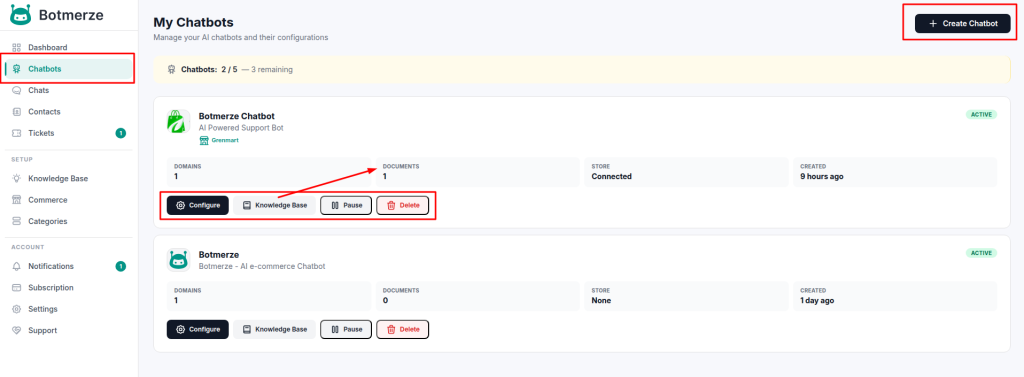
From the chatbot list, click the Configure button to view the details of an existing chatbot. You can manage all chatbot-related settings, update information, and customize the bot as needed.
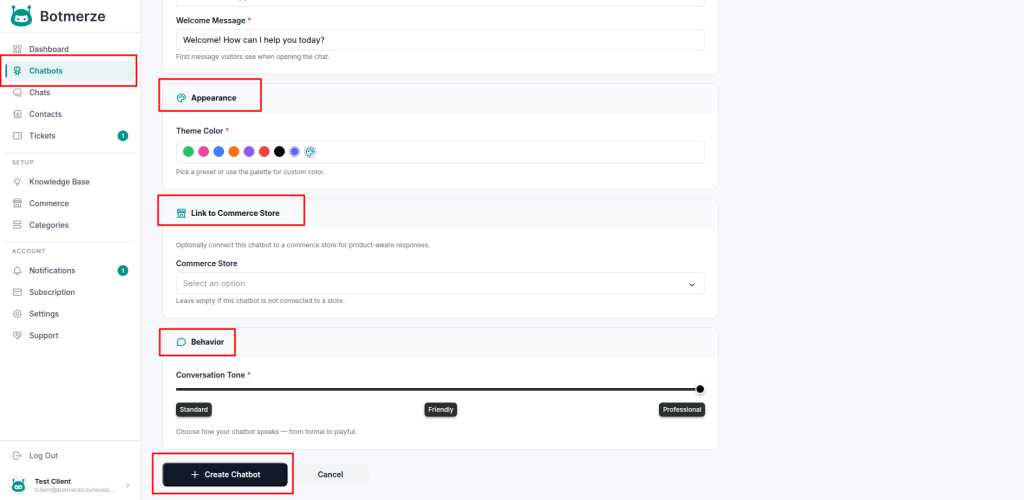
Create New Chatbot
Click the Create New Chatbot button to open the chatbot creation page.
On this page, you can configure the following:
- Upload a chatbot avatar
- Enter the chatbot name
- Add a short description
- Set a welcome message
- Choose the appearance theme color
- Select the eCommerce store for which you are creating the chatbot
- Choose the chatbot conversation tone
After completing the form, create your chatbot and continue with further setup.
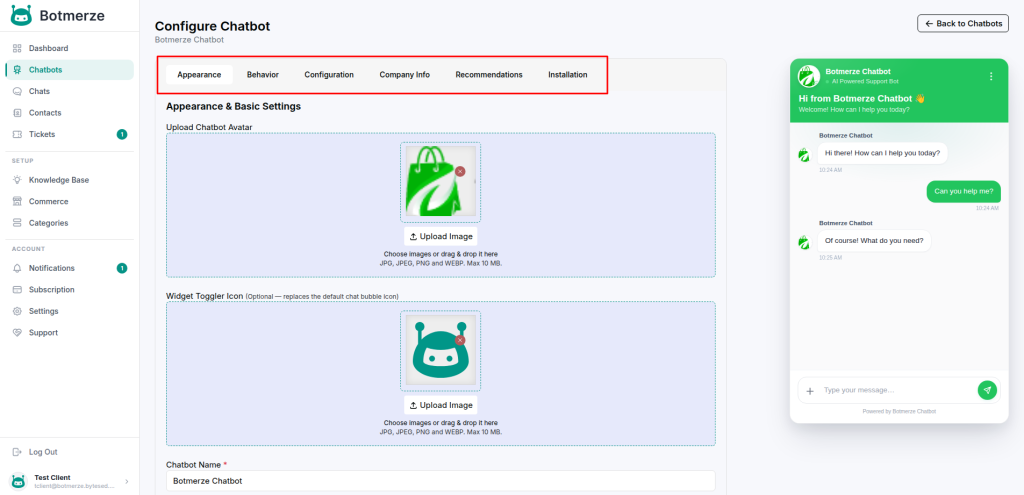
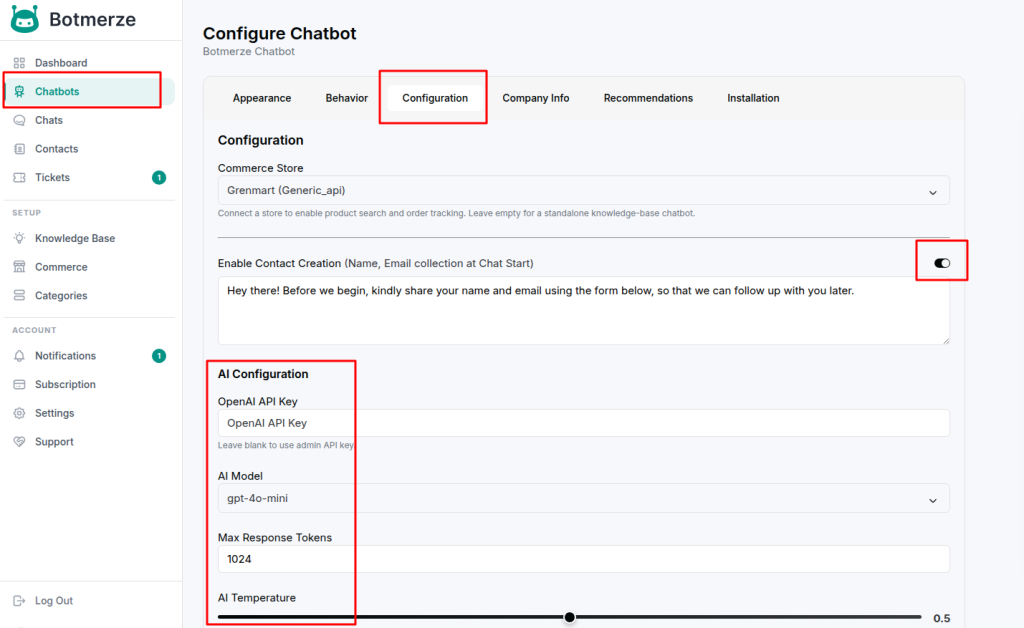
Configuration
The Configuration tab allows you to control how the chatbot collects user details, interacts with the OpenAI API, and manages response generation. This section includes all essential settings that determine how your chatbot processes user messages and produces replies.
Contact Creation Settings
- Enable Contact Creation
When enabled, the chatbot will collect the user’s name and email address at the start of the conversation for tracking and follow-up purposes. - Total Contact Created:
3 / 1999
Displays how many contacts have been created out of your remaining limit. - Contact Request Message
You can customize the message shown to users when the chatbot asks for their details:
“Hey there! Before we begin, please share your name and email address using the form below, so we can follow up with you later.”
OpenAI API Configuration
- OpenAI API Key
You can input your own OpenAI API key to power the chatbot.
If left blank, the system will automatically use the admin-provided key. - AI Model for Chatbot
Select which AI model the chatbot should use for generating responses.
AI Response Settings
Higher values = More Creative
Lower values = More Precise
Default: 0.2
AI Response Max Tokens
Maximum number of tokens allowed for each AI-generated response.
Default: 2000 tokens
User Query Max Length
Maximum length of user messages accepted by the chatbot.
Default: 1000 characters
AI Response Temperature
Controls how creative or precise the chatbot responses will be.
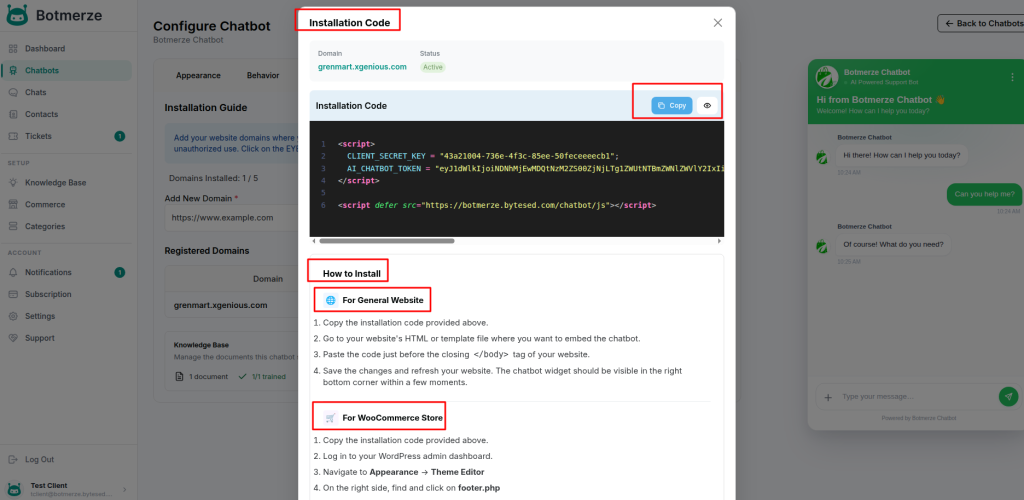
Installation
The Installation tab provides the integration tools needed to add the chatbot to your website.
From this panel, you can:
- Retrieve your chatbot installation script
- View all registered domains along with their status
- Remove or manage domains using the action buttons
- Find the embed script needed to install the chatbot on your site
This section ensures you can easily deploy and manage the chatbot across any domain you own.