
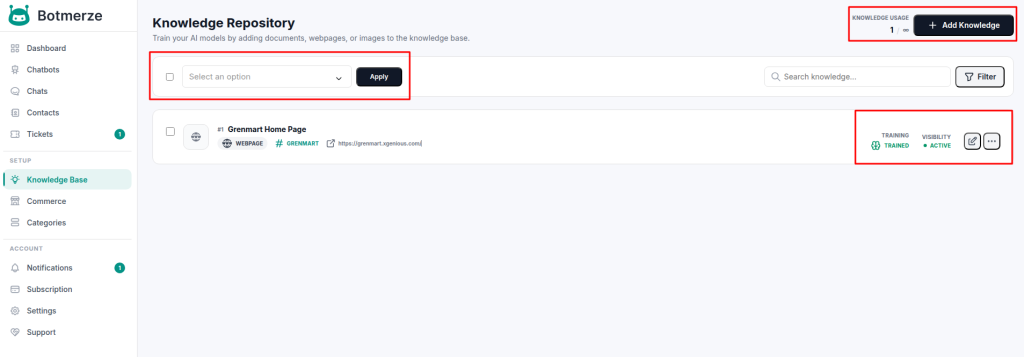
All Knowledge Base
The Knowledge Base page displays a list of all your knowledge base entries. At the top-left of the list, you will find the Bulk Actions menu, allowing you to manage multiple entries at once.
From the top-right, you can use the Add Knowledge button to create a new entry, along with search and filter options to quickly locate specific items.
The Knowledge Base is used to train AI model. The chatbot will generate responses based on the information you provide in your trained Knowledge Base.
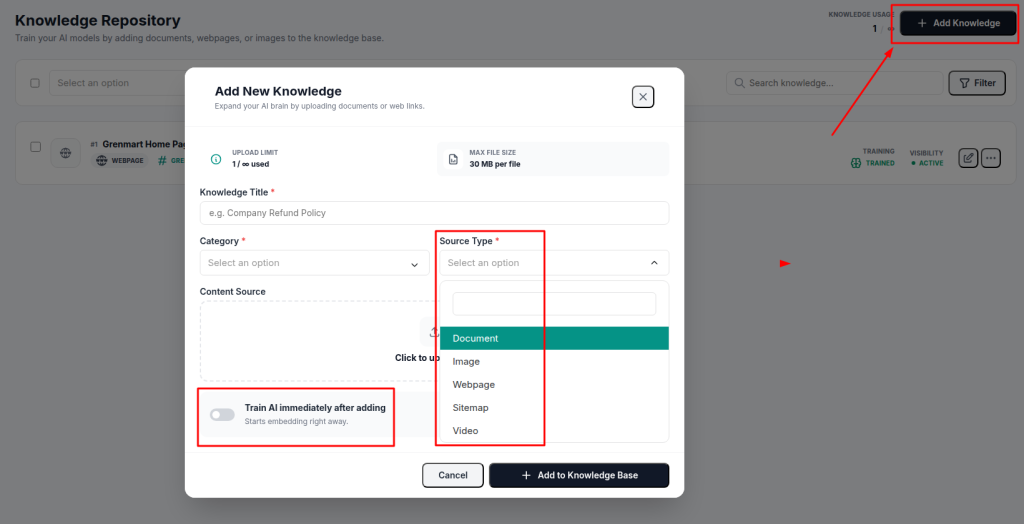
Add New Knowledge
The Add New Knowledge modal allows you to create and upload new knowledge entries that will be used to train your AI model. This form provides several configurable fields to ensure that each knowledge item is properly categorized and processed.
Key Sections in the Modal
- Title
Enter a clear and descriptive title for the knowledge entry. This helps define the topic and improves organization. - Category
Select the appropriate category from the dropdown to group your knowledge items effectively. - Knowledge Type
Choose the type of knowledge you want to add:- Document – Upload files such as PDF, DOCX, and TXT formats for AI training.
- Image – Upload image files such as PNG or JPG for OCR processing and AI training.
- Webpage – Enter a website URL to allow the system to fetch and extract content automatically.
- Sitemap – Add your website’s sitemap URL so the system can scan multiple pages and collect content efficiently.
- Video – Provide a YouTube video URL for content extraction and AI training.
- Upload Section
Based on the selected type, you can upload a file (Document/Image) with a maximum file size. - Website URL (for Webpage Type)
If you choose Webpage, you can enter the website URL.
Note: Some websites may not be readable if they block web crawlers. - Train AI immediately after adding (Optional)
Enabling this will trigger immediate knowledge synchronization. If unchecked, the item will be synced later.